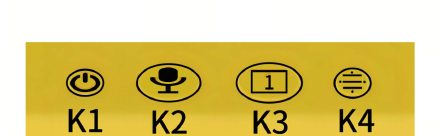
Your Stickr printer has four buttons on top, labeled K1–K4. What each one does depends on the screen you're on — this guide calls out the right button for every step.
Power On / Power Off
- Power on: Press and hold K1 for 5 seconds.
- Power off: Press and hold K1 for 5 seconds.
- The printer automatically powers off after 10 minutes of inactivity. It won't auto power-off while it's on the network setup page.
Connecting to Wi-Fi
If no Wi-Fi is detected on startup, Stickr automatically opens its network setup page. You can connect it to your home Wi-Fi either from your phone or entirely on the device — no app needed either way.
Option 1: Set Up From Your Phone
- Connect your phone to the Wi-Fi network
P8-28, password12345678— this is Stickr's own network, broadcast during setup. - Scan the QR code shown on Stickr's screen in your phone's browser, or manually go to
192.168.8.1. - Select your home Wi-Fi from the list, enter its password, and wait for the page to confirm the connection.
- The Wi-Fi icon in the top-right corner of Stickr's screen will change from disconnected to connected.
- Press K1 to return to the standby screen — you're all set.
Option 2: Set Up Directly on the Device
- On the network setup page, press K2 (previous) or K3 (next) to find your home Wi-Fi in the list.
- Press K4 to open the password entry screen.
- Use K2 / K3 to move the cursor and pick characters, pressing K4 to confirm each one.
- Once the password is entered, select the ✓ icon and press K4 to confirm.
- Press K1 to return to the standby screen — network setup is complete.
Stickr only supports 2.4 GHz Wi-Fi — it can't connect to a 5 GHz network.
Need to switch networks later? Double-click K2 to re-open the network setup page.
Choosing a Language
From the standby screen, move the cursor to Language and press K4 to open the language menu. Pick your language and press K4 again to confirm — the system switches right away.
Say It, Print It
This is the whole trick: press and hold K2, say what you want to see — "rainbow kitten," "spaceship," "flower castle," anything — then let go of K2. Stickr generates a matching image and gets it ready to print.
Changing Printing Styles
Stickr can generate images in eight different art styles: Crayon, Low Poly, 3D Cartoon, Doodle, Line Art, Cute, Picture Book, and 2D Cartoon. From the standby or printing screen, press K3 once to cycle to the next style (shown in the top-left corner). Keep pressing until you land on your favorite.
Auto vs. Manual Printing
- Auto Print: the sticker prints automatically as soon as the image is ready.
- Manual Print: press K4 whenever you want to print the image that's ready and waiting.
- Press and hold K4 to switch between Auto and Manual mode.
Troubleshooting
Paper jam: make sure the paper roll is loaded straight and isn't oversized for the printer.
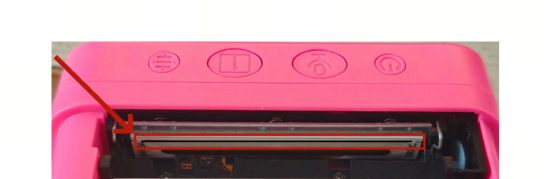
Blurry prints: usually dust or residue on the print head. Gently wipe it with a damp cloth or a little rubbing alcohol.
Safety Precautions
This product must not be scalded, immersed in water, or kept near fire.
The packaging is not a toy — please don't let young children play with it unsupervised.
This product should only be used by children under direct adult supervision, and should be unpackaged by an adult before being given to a child.
Don't let children disassemble, damage, or attempt to take apart this product — this can cause choking, suffocation, or other injuries.
Please keep this manual — it contains important safety information.
Video Guide
Prefer to watch instead? Check out the quick video walkthrough for a look at Stickr in action.
Still Need Help?
Reach out any time at hello@stickrsg.com and we'll sort it out with you.